

Open the configuration window
From the macOS menu bar (or on Windows, the application menu ☰ in the top-left of the sign-in screen), go to Help → Troubleshooting → Enable Developer Mode, then Developer → Configure Third-Party Inference…. Developer mode stays on across restarts. To turn it off again, go to Developer → Open Developer Config File, change"allowDevTools": true to false in the file that opens (or delete the file), save it, then quit and reopen Claude Desktop. The Developer menu is gone on the next launch.
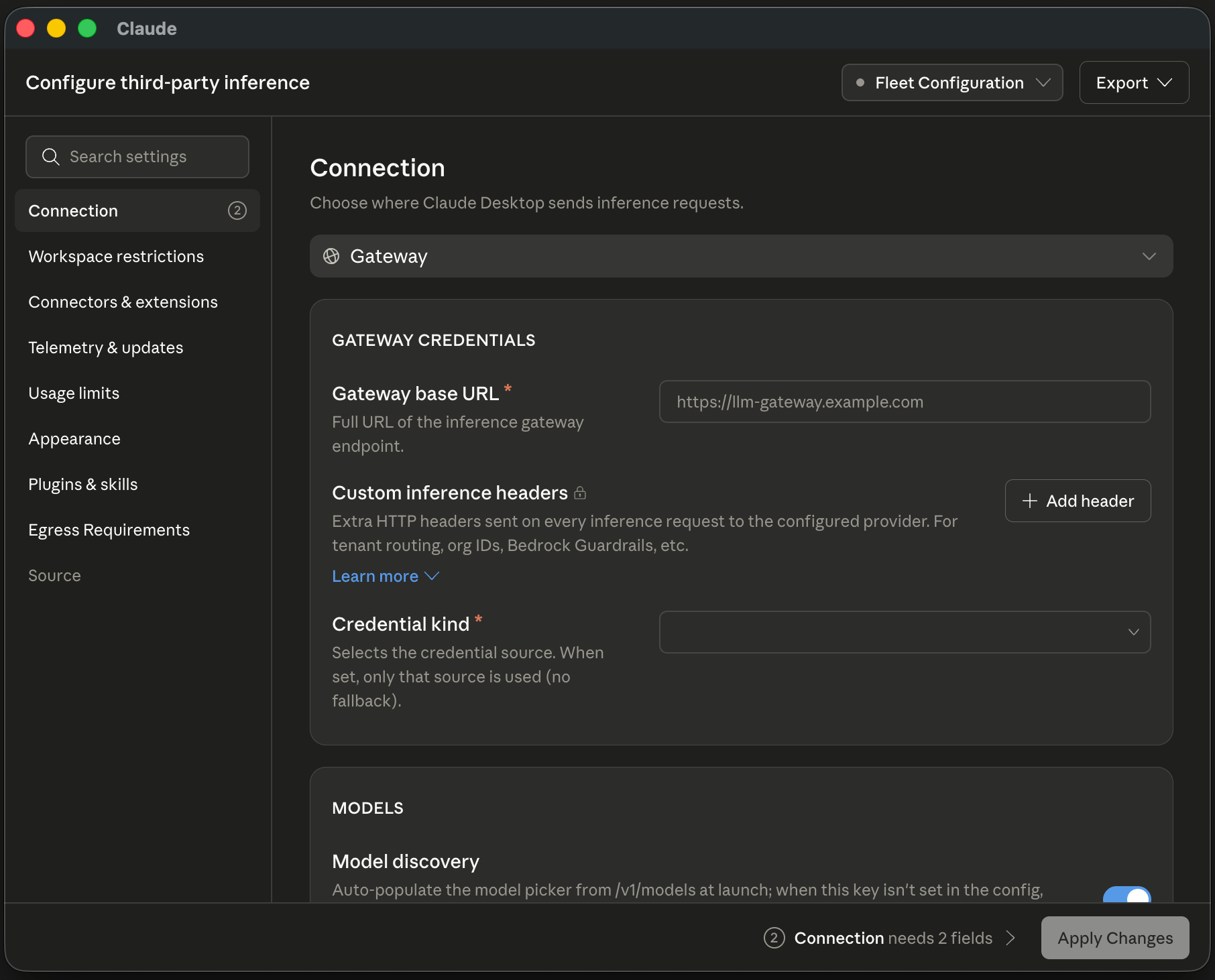
The in-app configuration window, showing the Connection section for a gateway provider.
Apply locally or export for a fleet
Use Apply Changes to write the configuration to this device only and relaunch into it. This is the single-machine setup path for evaluation and pilots. Use the Export menu to generate deployment artifacts for a fleet:
See Deploy with MDM or Deploy with a bootstrap server to distribute what you exported.
When a managed profile is already present on the device, the window opens in read-only mode and shows the deployed values. Author new configurations from a device without a managed profile.